
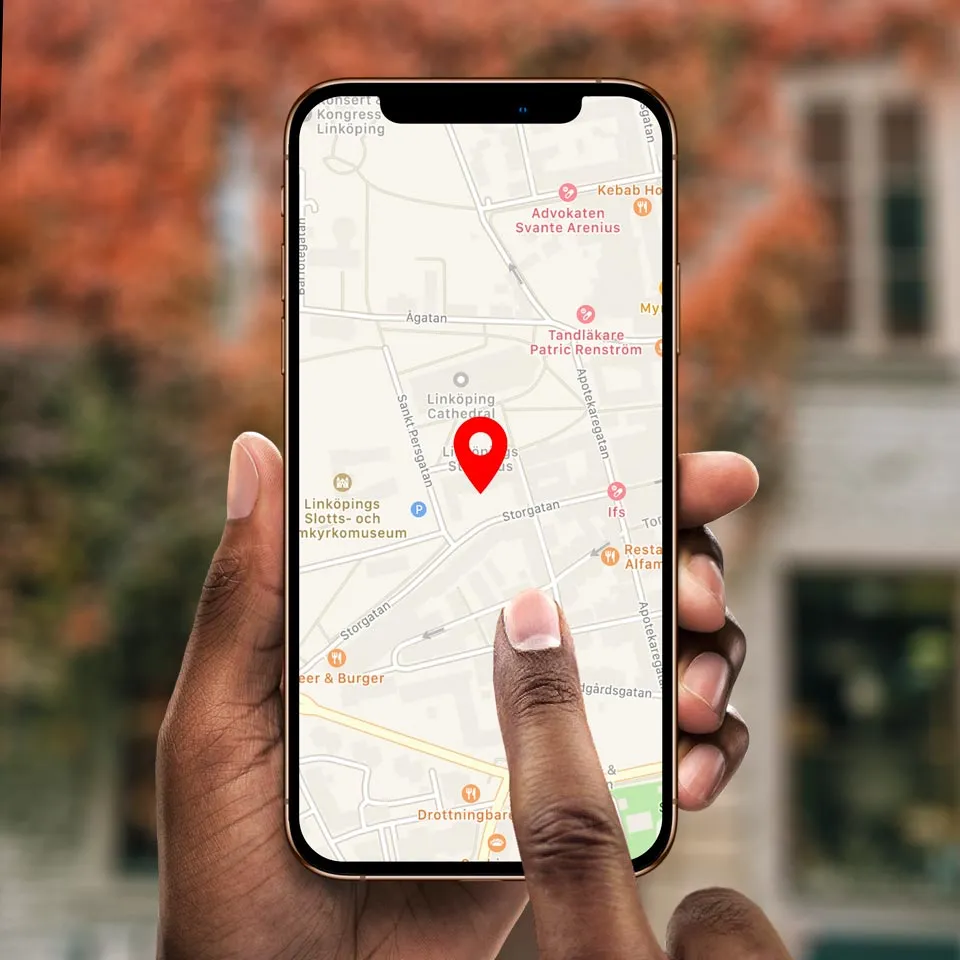
The Locator block, unlike most other block types, doesn’t show any content of its own. Nor can it have any child blocks. When
displayed, all you’ll see is an (optional) numeric keypad. The purpose of this block is to determine where a visitor is in order to
present content associated with that spot.
NOTE: This is a premium block type, requiring an additional license option in order to be used.
The visitor’s location can be obtained by any of the following means:
• By entering a number using the numeric keypad. This number correlates to a Location ID that can be assigned to spots.
• By GPS position. This position is matched agains geolocation zones specified in spots, and can be used only outdoors with devices that have a built-in GPS receiver, such as most mobile phones.
• By scanning a QR code found at the spot. This can be done using the camera built into most mobile devices. Alternatively, it
can use specialized RFID/QR scanning hardware emulating a keyboard (such as the Zebra range of Android-based scanners).
• Manually, using an on-screen button to specify your position. The button can show a picture of the object, allowing you to select it from a menu of objects.
NOTE: The GPS and camera-based QR code options can only be used when accessing Blocks over an https connection.
This is an advanced server configuration option, requiring a valid https certificate.
Depending on the type of Spot being located, the content can be anything from a text or an image, an interactive multi-page presentation, a video or a sound. Often, you’ll use just a sound clip, possibly accompanied by an image confirming you’re at the right
place. This can be used to create an “audio guide,” playing audio localized to where you are, or describing a particular object.
A Locator block, with numeric keypad, GPS and QR modes enabled.
60
A Locator can be used inside other blocks, providing further interactivity. As indicated by the breadcrumbs at the bottom of the
illustration above, the Locator is inside a Book inside a Stack block. The buttons at the bottom of the Stack block provide overall
navigation (as in the example shown under Stack in this chapter). Book pages can provide interaction or other content such as a
composition with buttons for choosing your preferred language, or a web block showing today’s specials in the local restaurant.
A Locator being used as a part of an interactive, multi-page mobile guide.
While on the Guide page of the example shown above, the Locator’s keypad is shown. Upon entering a number or using GPS/QR
to determine your visitor's location, the corresponding Spot is located, and its block appears on the mobile device. If this is a Location spot, you can get additional information (including images, sound and video) related to an object at that location. If it is a
Display or WATCHOUT spot, you can get synchronized audio, perhaps including narration in your visitor’s preferred language.
Once the content associated with the spot stops playing, the keypad reappears. A button is also overlaid on the content while
playing, allowing you to stop playback at any time.
No reviews yet.